
Start with your game and profile
Mod Manager opens first when you start the suite. Choose Manage Profiles for ETS2 or ATS, then select the profile you want to use. If a location is missing, use Game locations… to check it.
Search your installed mods, add them to the active order and drag them into position. Load-order changes are not saved until you choose Apply Load Order. The manager makes a backup and checks the saved result.
Small fixes that make everyday use easier
Clicking or dragging either mod list’s scrollbar now keeps your selected mods in place. Clicking empty space inside the list still clears the selection. You can scroll through a long list without having to select the same group again.
V2.1.6 also fixes some folder-access checks that could leave Recycle unavailable for ordinary local mods. It adds checks before passing approved items to Windows, while keeping the usual confirmation and Recycle Bin restore behaviour.
Do not update or replace mod files while Recycle is running. If the button is still unavailable, hover over it for the reason and ask GMC Discord for help. Share any local folder paths privately.
Clearer selections, better disabled-mod recovery
Selected disabled or missing-file rows now use a lighter rose highlight, making single and multiple selections easier to see. Regular selected rows stay green. This changes the highlight, not the mod’s status.
If the game’s enabled list changes, The suite protects your retained temporarily disabled entries when you choose Keep Saved State. Recover Disabled Mods puts them at the bottom of the order, still disabled, so you can review and move them before applying. It does not guess their old positions or change the order of your existing enabled mods.
Recovery uses the information still held by the manager. It cannot recreate records already discarded by an older build. Read the recovery steps.
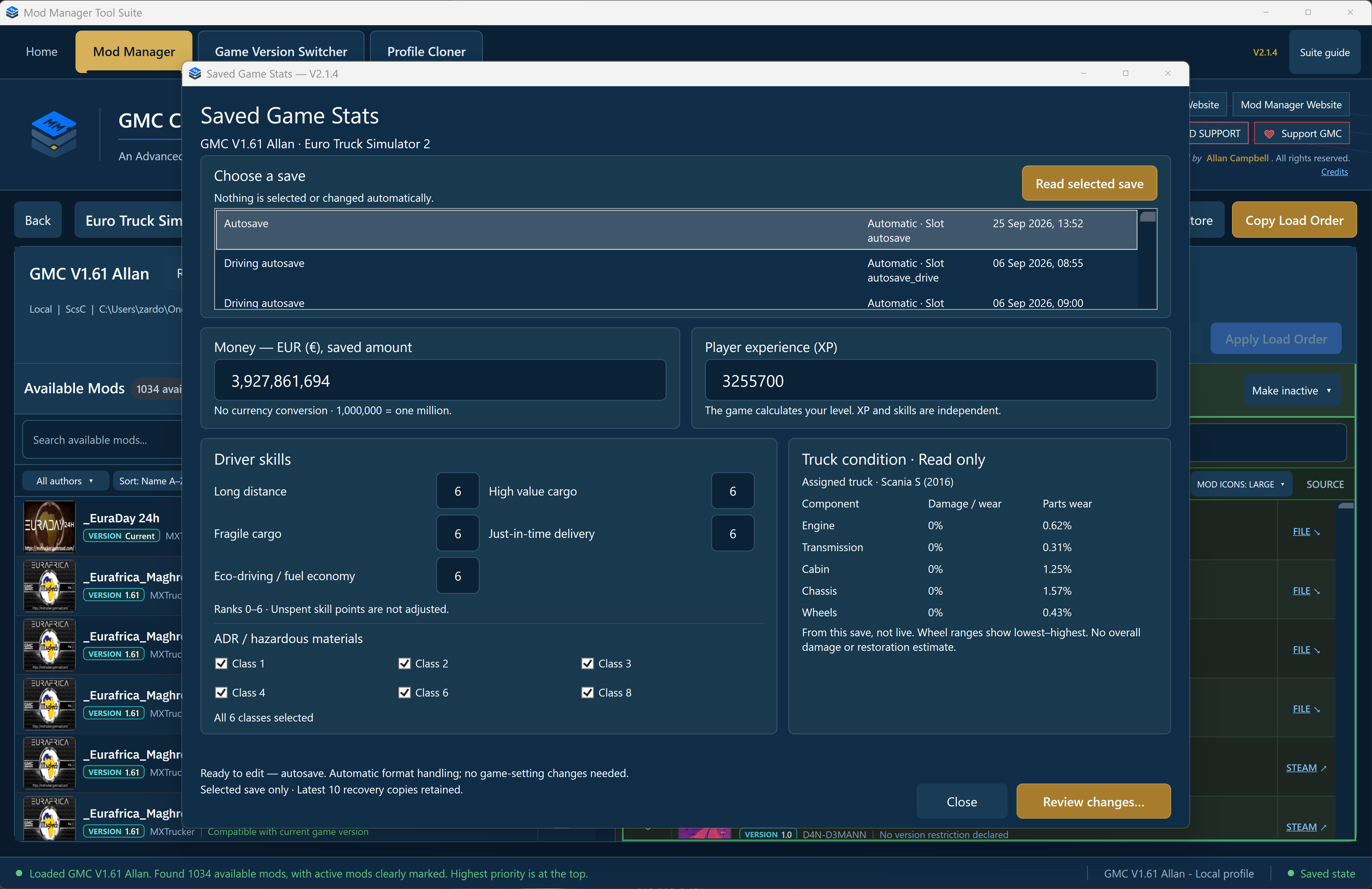
Saved Game Stats
Money and XP sit side by side, skills are grouped together and the buttons stay visible while you scroll. On smaller windows the sections stack. The familiar main Mod Manager workspace has not changed.
Use Saved Game Stats beside the selected profile to read and edit money, player XP and skills in a supported Local save. The save list shows its in-game title, save type, folder slot and date where available, so you can choose the right one.
Close both games and finish your load-order changes first. Read the selected save, make your changes and review the before-and-after values before confirming. ADR/HazMat classes have separate named checkboxes. Money uses the save’s base currency: EUR for ETS2 and USD for ATS.
The editor keeps the latest ten verified recovery copies per save slot. It does not edit Steam Cloud saves. After editing, load that exact save in-game rather than assuming Continue will choose it.
Truck condition, without changing it
The panel shows the truck recorded in your selected save: engine, transmission, cabin, chassis and wheels, with damage/wear and parts wear shown separately. Wheel readings can show a lowest–highest range. Missing information is marked Unavailable, not zero.
This is a read-only snapshot from that save. It does not repair the truck, show live readings or calculate an overall damage or restoration estimate.
Steam connection and Workshop links
Choose system proxy settings, a direct connection or a manual proxy for Workshop requests. Workshop page links lets you open pages in Steam, use your browser or choose each time. Profiles, installed-mod scans and load-order work remain local.
For your first change, use the in-app 2-Minute Quick Start or the website quick guide. Apply or undo your changes before opening another tool.